























serafex

Platform · Space 06 of 20

Email : your Gmail and Outlook inboxes, inside Serafex

With Gmail or Outlook connected

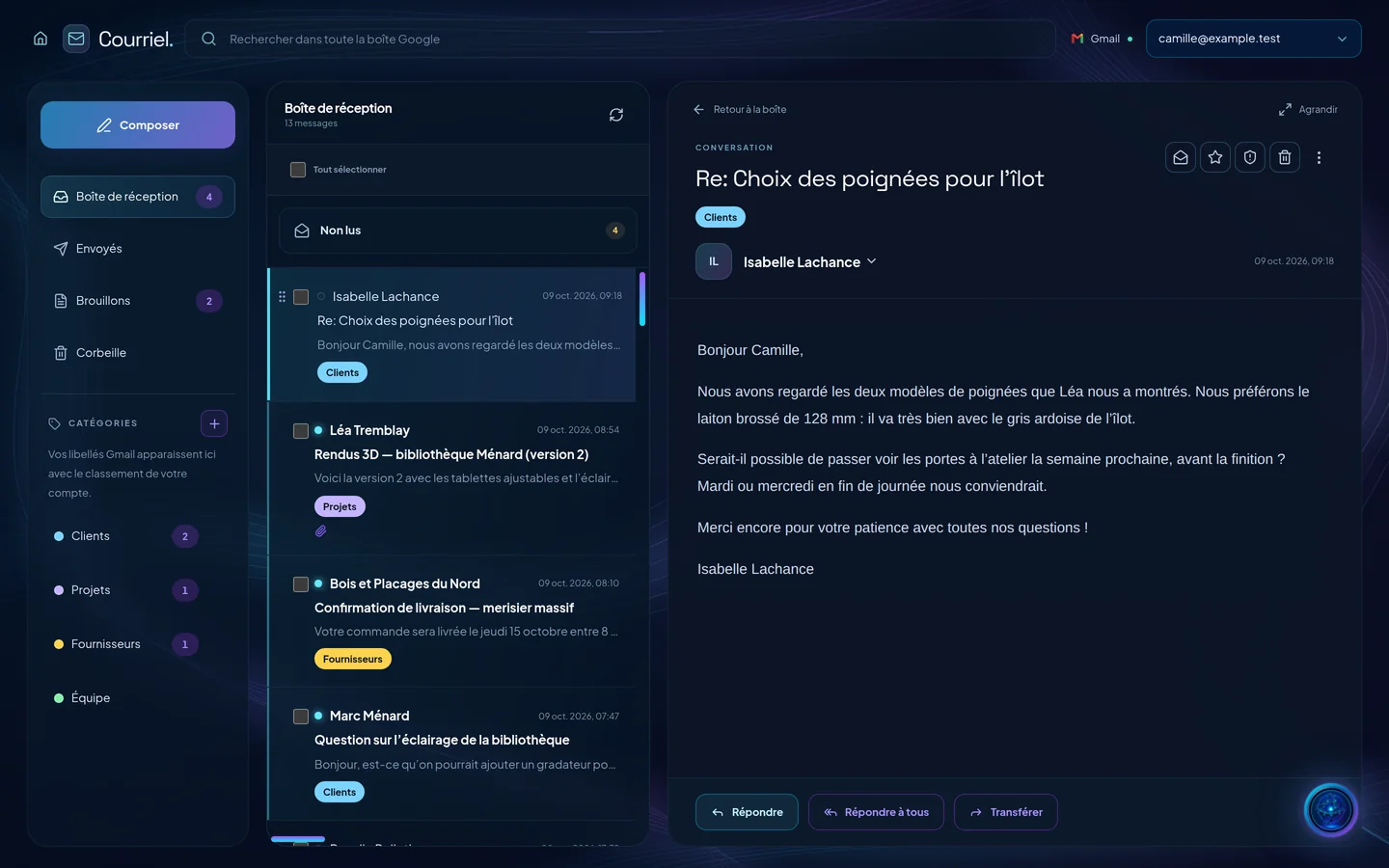
Email opens your Gmail or Outlook inbox inside Serafex, without creating a new address. You read, reply to and sort your emails, schedule a send, reuse your templates, and your signature is added on its own.

  • Several inboxes
  • Categories
  • Templates
  • Scheduled
  • Signature
Demo screenshot, labels in French: Email: the message “Re: Choice of handles for the island” open, next to the inbox sorted by category.
Demo · sample data · labels in French

01 · In the app

What’s worth seeing in Email

Demo screenshot, labels in French: The inbox categories, Clients, Projects, Suppliers and Team, and the message list with their colour labels.

An inbox that sorts itself

Your Gmail labels appear with their colours: Clients, Projects, Suppliers, Team. A sender rule files their emails into a folder, in the background, about every minute; a blocked sender goes to spam, along with their next messages.

  • Categories and colours
  • Rule per sender
  • Block a sender
  • Bulk select and move
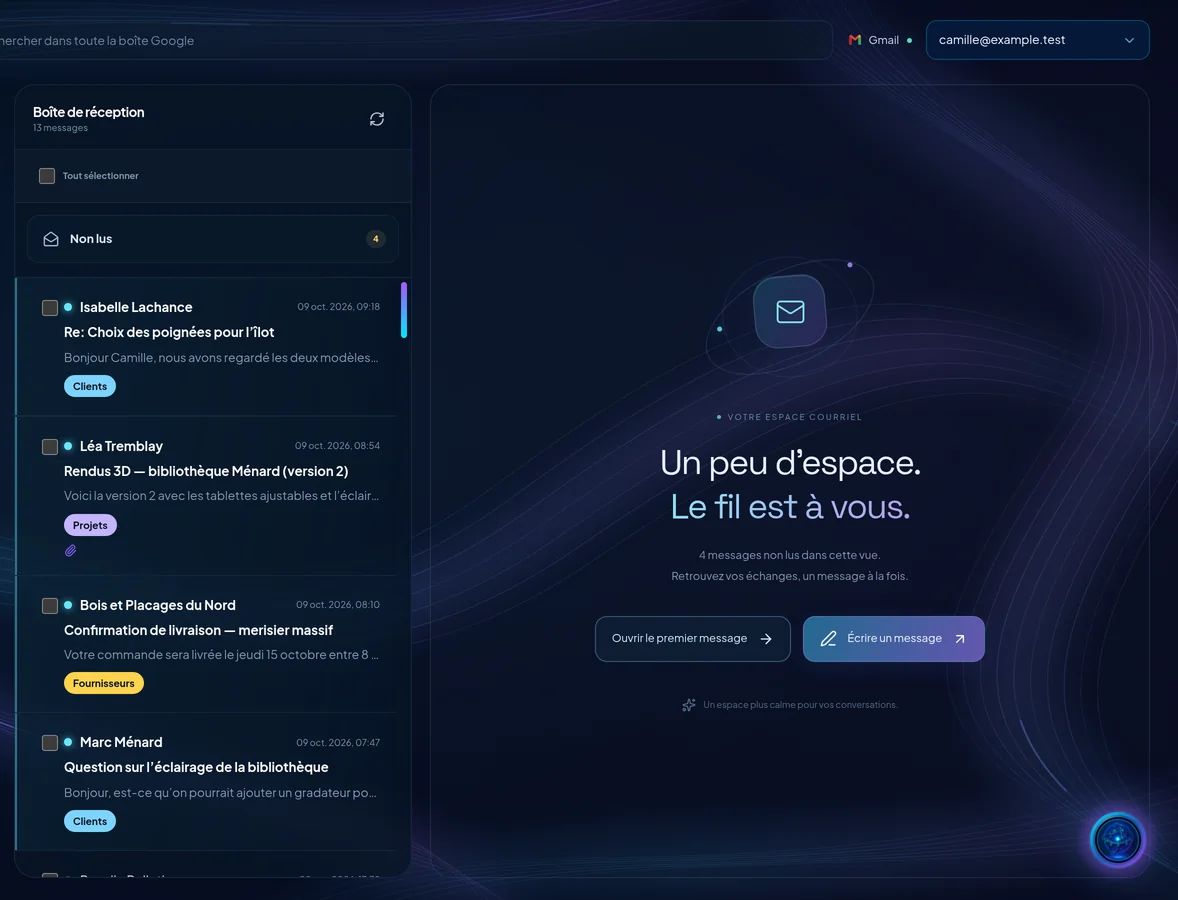
Demo screenshot, labels in French: The reading pane at rest: “A little space. The thread is yours.”, with the buttons to open the first message and write a message.

One message at a time

Reading happens one message at a time, in a calm space. Remote images stay hidden by default to protect your privacy; you show them if you want. An attachment opens in preview.

  • Reading pane on the right or hidden
  • Remote images hidden by default
  • Attachment preview

The right time for your message

The arrow next to Send schedules an email: tomorrow afternoon or the date of your choice. It goes out at the planned time, even when the app is closed, and can be cancelled in Scheduled until it leaves.

  • Scheduled sending
  • Goes out even when the app is closed
  • Cancellable before sending

Your templates, your signature

Save a message as a template, for yourself or for the whole company, filed by category; each template keeps its versions. The active signature created in Design is added to new messages, replies and forwards.

  • Personal or company templates
  • Versions of each template
  • Signature created in Design

02 · Section by section

Everything inside Email

Inboxes

  • Gmail or Outlook
  • Several inboxes, one at a time
  • Inbox, sent, drafts, trash

Sort

  • Categories and colours
  • Sender rules
  • Block a sender
  • Spam

Write

  • Formatting and images
  • Attachments, 10 MB per file
  • Templates
  • Scheduled sending
  • Automatic signature

Settings

  • Density and preview
  • Reading pane position
  • Reply or reply all
  • Confirm before trash

03 · Seraf in this space

Seraf prepares, you confirm

Seraf does not answer incoming emails on its own: automatic replies and sends are not offered. For a Company file, a prepared email waits for an approved decision, then sending stays a separate action, which you confirm after checking the recipients, the content and the attachments.

04 · Your account

Access and connections

Email is part of the base plan, with Gmail or Outlook connected. The provider you choose asks your permission to read, send and sort your messages, which stay with that provider. Its rules, forwarding and automatic replies are not managed in Serafex.

Included in the Executive planSee the plan →

06 · Next step

Your inbox, same address

Gmail or Outlook: tell us what clutters your inbox. An advisor shows you how Email sorts, schedules and signs for you, inside Serafex.

Opens the “Prepare a discovery call” form · no commitment